
"Member Name and Alias" Option Now Available in SmartView 22.100

I was really thrilled when I recently got this exciting news on Oracle EPM Cloud Platform, back from holidays: since 5th August 2022 (test instance) or 19th August 2022 (production instance), thanks to the 22.08 update ( check the last Oracle Cloud Application Update Readiness here ) .
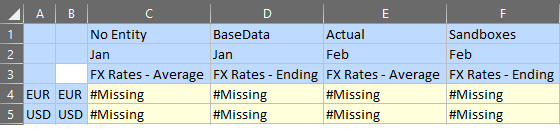
We can now have in an Excel spreadsheet connected in Ad Hoc mode both Member name and alias in 2 separate columns on rows:
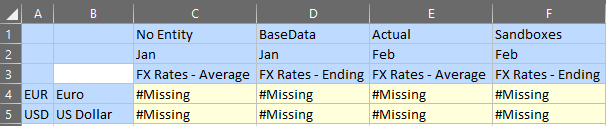
This means there is an opportunity to get rid of any alias table that was eventually created with the concatenation of member names and their aliases. Yes, I’ve read in so much forums/discussions that this was a common workaround for some time now. It was so badly requested from the community that the Oracle Support Knowledge section also documented this workaround here as “Member Names And Aliases Cannot Both Be Displayed In Smart View for EPM Cloud Services (Doc ID 2497884.1)”. And to be honest, I had more than once – as many of you probably also did – to resign myself coming back to the customer to implement that workaround. Thankfully, the Planning Extension acted as a painkiller as it allowed me then to make it done in few minutes.
More information on updating to this last release of SmartView here.
The documentation has also been updated here.
The conditions to benefit from this feature are described below.
First condition : update Smartview to 22.100
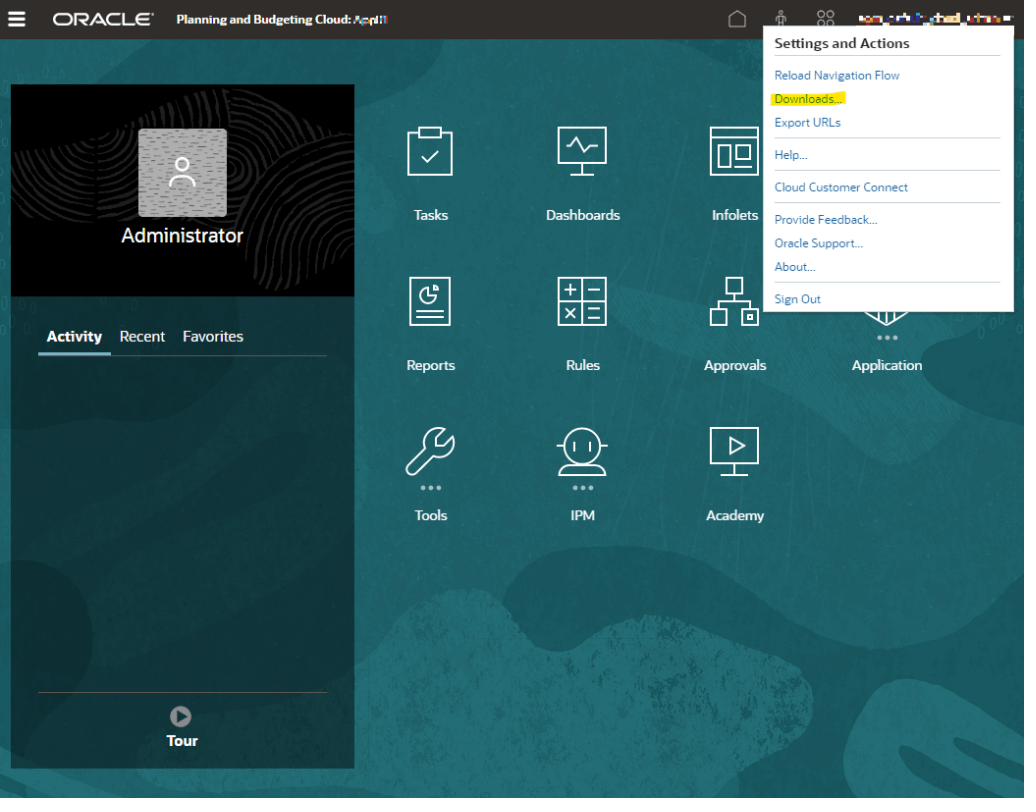
Nothing new nor fancy here: I started by logging into one of my Oracle EPM Cloud application (Planning will be used in this article), and clicked on Downloads.
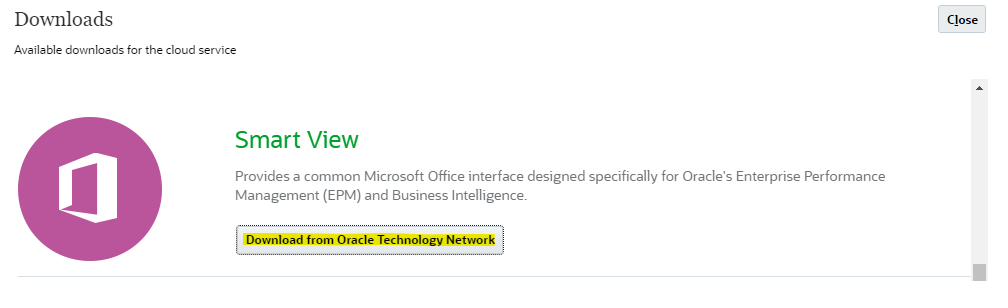
Next, in Smart View section, I can download from Oracle Technology Network.
This has opened a new tab to the Oracle Technology Network page:
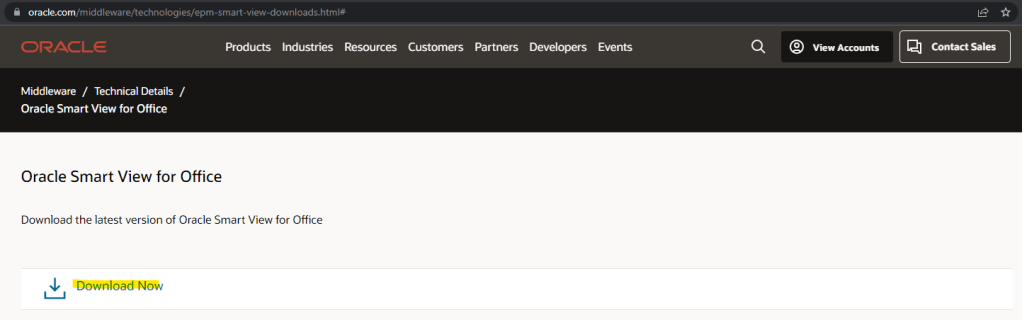
From here, I was at many times like “What? Still one more ford to cross? Oh man…” I was like in a revival of my Iceland trek back in 2017 from Thorsmork to Landmannalaugar.

Yeah, believe me, the temperature of the water was far below 10°C… at least I like to believe that being in cold water may improve my bloodstream.
Clicking the “Download Now” button has again opened a new tab and I was redirected to the Oracle Software Delivery Cloud:
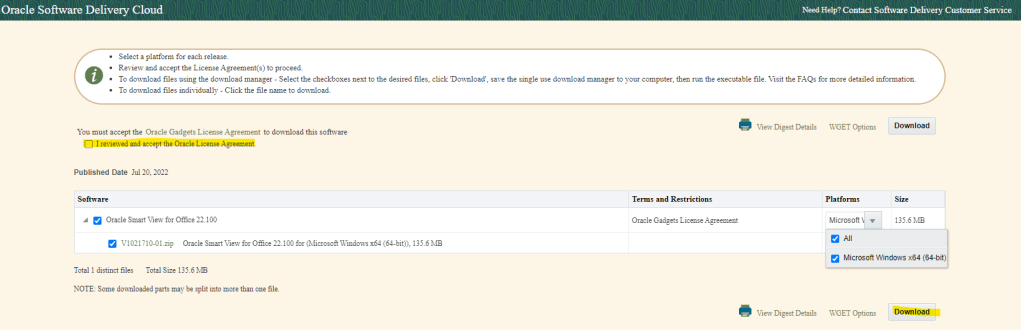
I was able to download an.exe file beginning with “Oracle_SSN_DLM”, with a nice “infinity” red symbol:
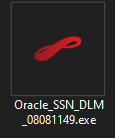
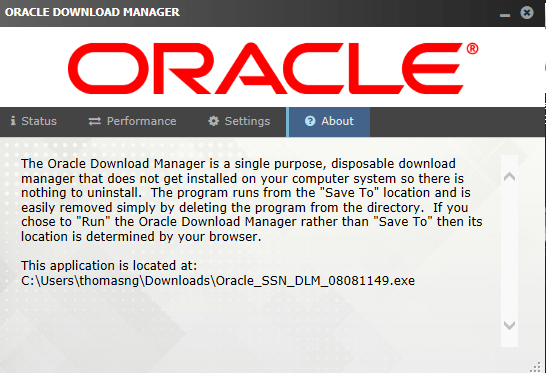
Double click on this icon to open the Oracle Download Manager window. Note the timestamp ddMMhhmm in the filename.
At this stage, that’s when I discovered the Oracle Download Manager, which is nothing more than the way to finally download the compressed archive “V1021710-01.zip”:
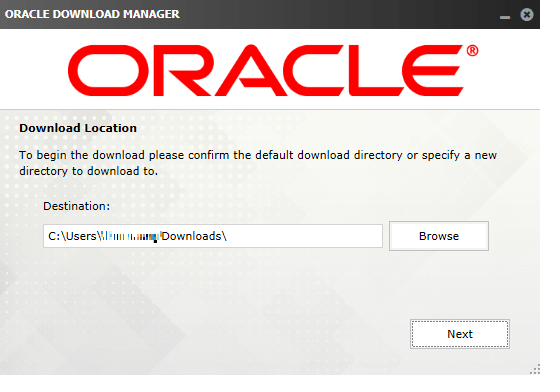
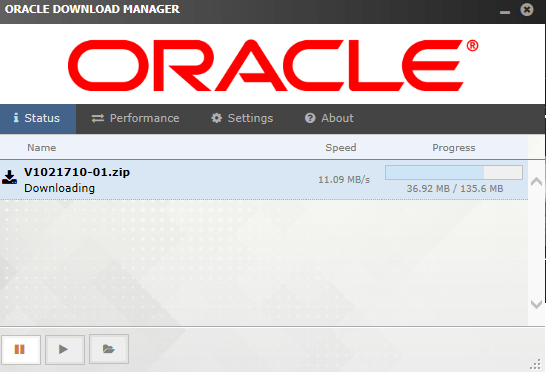
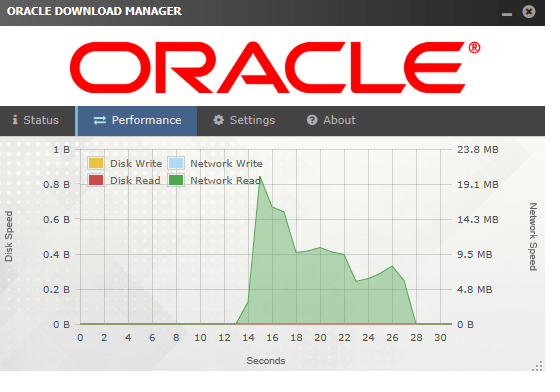
When download has completed, I could extract the compressed file and execute SmartView.exe. These steps won’t be documented here, but as I wanted to be careful, I uninstalled the previous version of SmartView prior to executing the exe.
After installation is complete, I was able to confirm that my installation of SmartView was updated:
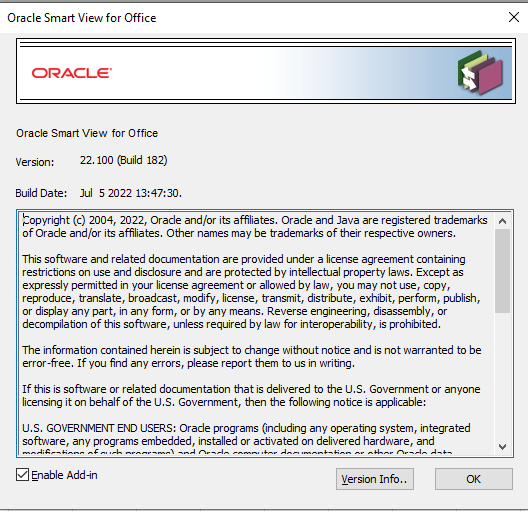
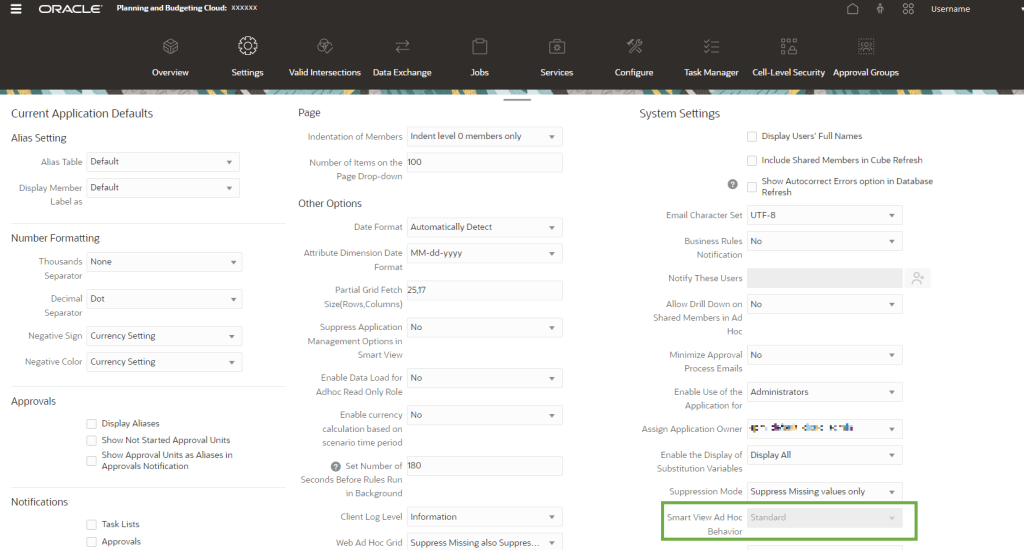
Second condition : Application Settings for SmartView Ad Hoc Behavior should be set to “Standard”
It seems « Native » is not planned to be supported (see on this post on Cloud Customer Connect ). In addition, « Formula Fill » option is not yet available but is planned (see URL on previous bullet point)
Third condition : be in Ad Hoc mode
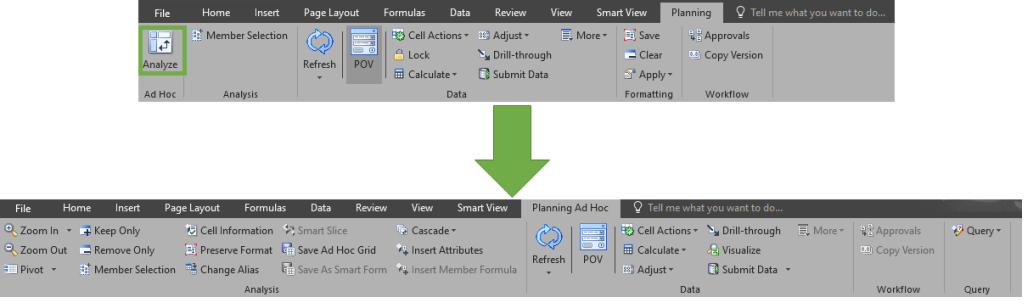
I could then connect any Excel worksheet in Planning Ad Hoc mode. Little useful reminder: Data forms or Flex forms are opened in SmartView in Planning mode. Remember the useful button “Analyze” which allows you to quickly move from the Planning mode to the Planning Ad Hoc mode.
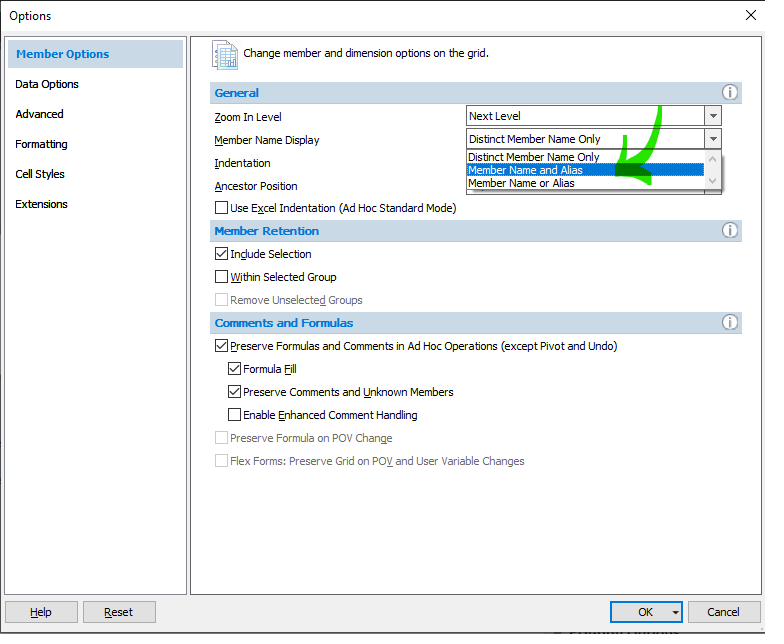
Fourth (and last) condition : select “Member Name and Alias”
Last but not least, I selected the corresponding option in SmartView options and pressed OK.
Now it’s like I felt when almost there to the hot springs… I can see the end is close!

So that’s when I got this:
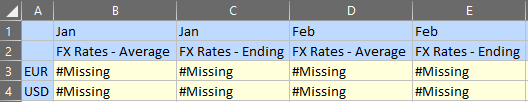
Oh, I almost forgot to select an alias table that is different from None:
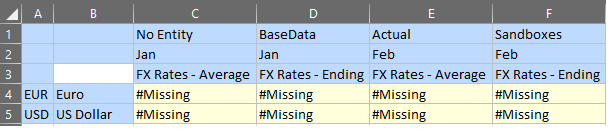

Thanks to this, I could have made amends with some of my previous customers… but never too late to spread this news!